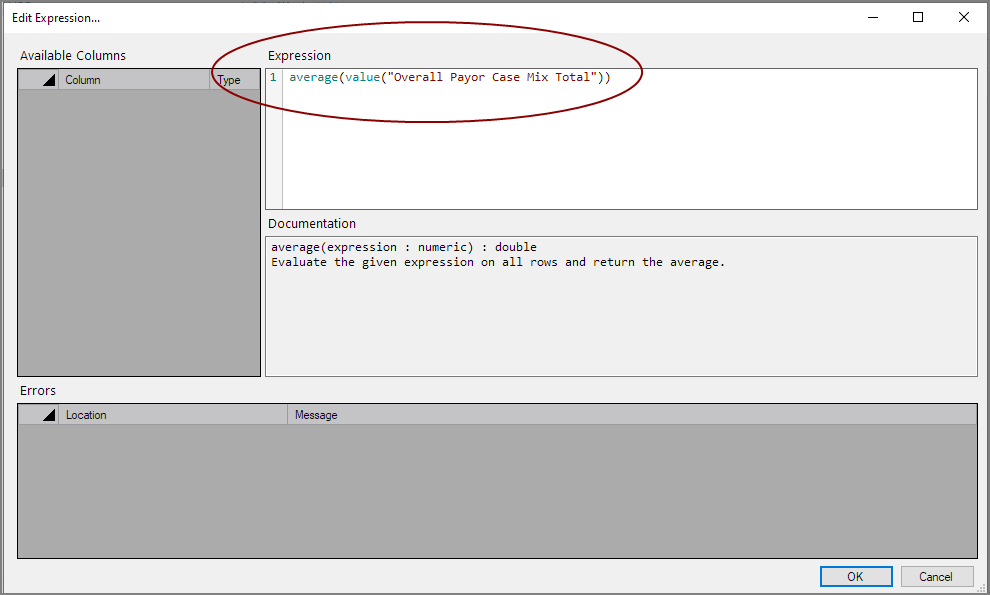
The Spectre Expressions Editor is a dialog box that provides assistance for creating and editing expressions in Spectre files anywhere that an expression is allowed.
In the Edit Expression dialog box, you can:
- Get help with the syntax for a function by starting to enter the name—a pop-up window lists potential functions.
- Display documentation in the Documentation pane by placing the cursor within a tag in the Expression pane. This feature facilitates accessing the documentation for nested functions.
- View the Available Columns in this data set. Double-click a column to include it in your expression. (The available columns display only in the Spectre Build Script editor.)
- Write or edit an expression. You can use keyboard shortcuts
NOTE: As you work in the Expression field, you can use Ctrl+Space to display a list of available tags. - See any syntax errors or any other errors regarding functions.
- Adjust the size and spacing of the panes. Workbench saves the size and the location settings for future sessions.
Access from the Measure Factory Editor
When editing measures and calc or link rules using the Measure Factor Editor, you open the Expression Editor.
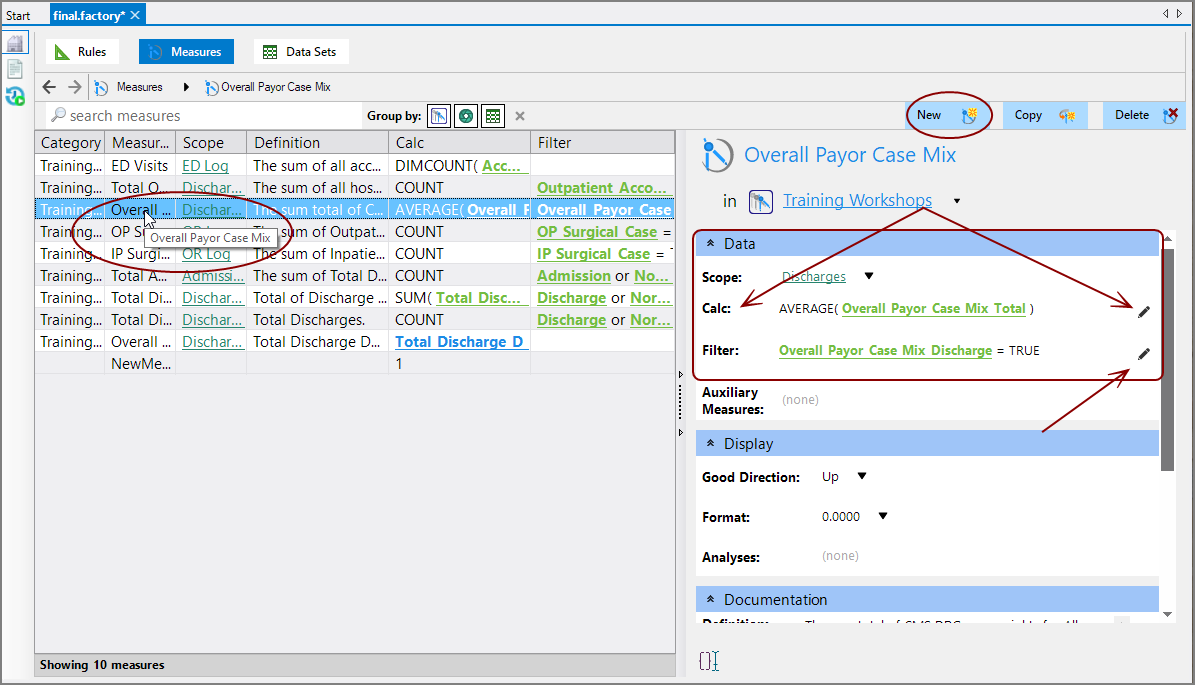
To open the Expression Editor from the Measures tab:
-
Double-click an existing Measure Name in the left pane, or click New in the heading.
The measure
 detail pane opens on the right.
 -
In the Data section, click the Pencil icon
 for the Calc or Filter to open the Spectre Edit Expression dialog.
 - Make your edits and click OK to save them, or Cancel to discard them.
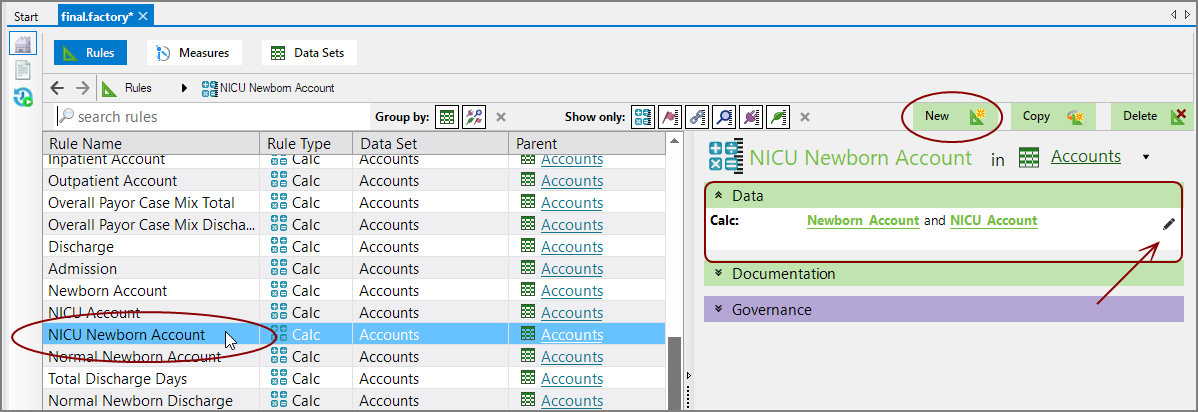
To open the Expression Editor from the Rules tab:
-
Double-click an existing calc or link Rule Name or click New in the heading and create a calc or link rule.
The rule
detail pane opens on the right. -
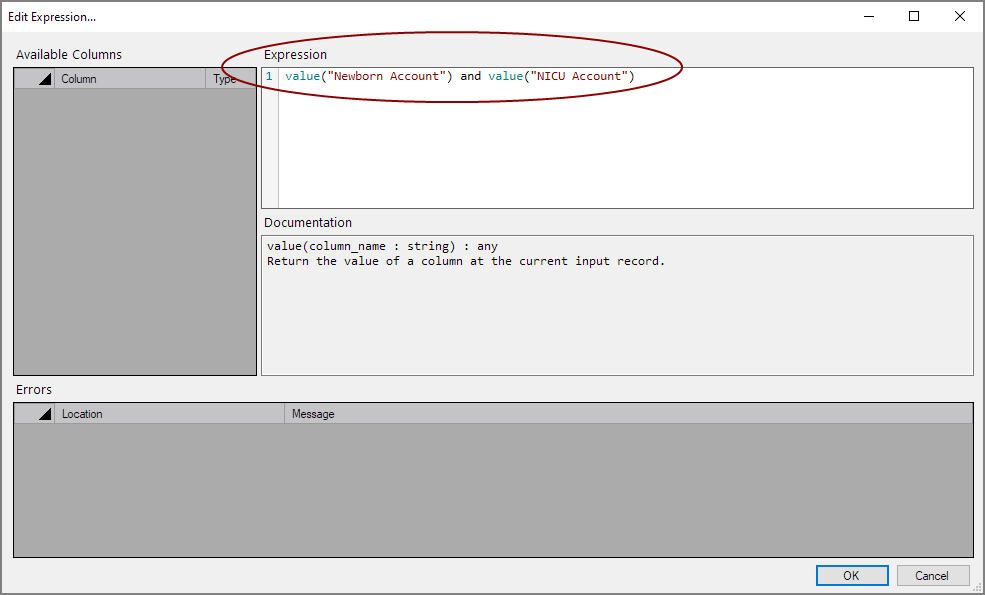
In the Data section, click the Pencil icon
to open the Spectre Edit Expression dialog. - Make your edits, and then click OK to save them or Cancel to discard them.
Mentioned in: