Verifying the DivePort Installation
To verify a successful implementation of DivePort, complete the following steps:
-
Open a browser and enter the URL for the DivePort portal, using a format similar to the following:
https://<servername>/<portal name>
For example, https://jsmith-001/diveport-test, where jsmith-001 is the server name, and diveport-test is the name of the DivePort portal. The URL must use a secure version of an HTTP, or HTTPS. This URL can also be found in Step 20 of Installing DivePort.
Proceed to Step 5 if you installed a signed HTTPS certificate during the initial install.
NOTE: DivePort resides outside of the company firewall and requires an HTTPS certificate to communicate with the Tomcat protocol.
-
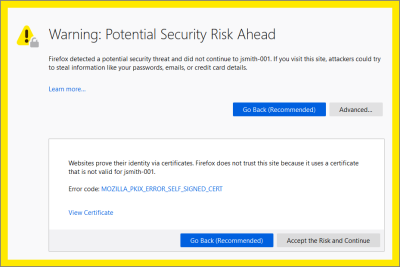
The first time you log on to DivePort after an installation using a self-signed certificate, you see the
 Your connection is not secure warning page.
 -
Click Advanced to
view the error message: The certificate is not trusted because it is self-signed. -
If you created a self-signed certificate using the DivePort installation wizard, click Accept the Risk and Continue.
The exception is added to the browser automatically.
NOTE: You need to verify that your DivePort connection is secure when using a self-signed certificate on each machine that uses the DivePort client. In other words, include this information in your end-user training.
-
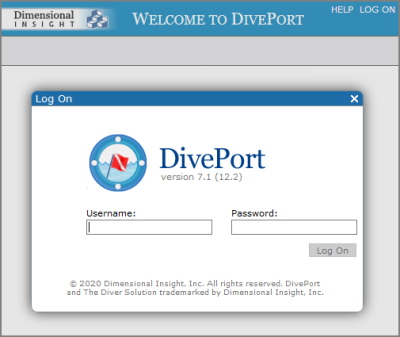
If you see the
Welcome to DivePort page with a log on prompt, you have successfully installed DivePort. - To log on to DivePort, enter the administrator Username and Password from the DiveLine installation, and then click Log On.
-
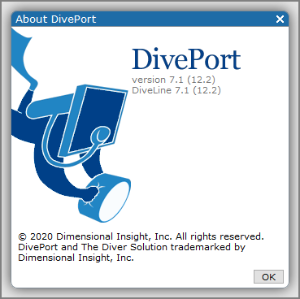
In the menu bar, click About to open the
About DivePort information page with the version numbers for DivePort and DiveLine.
-
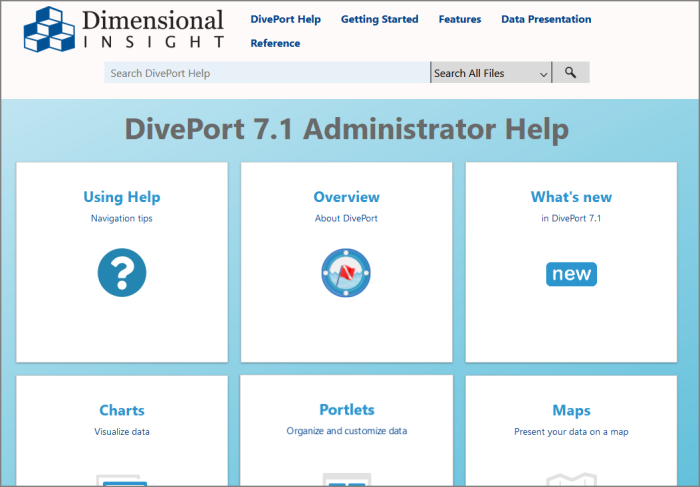
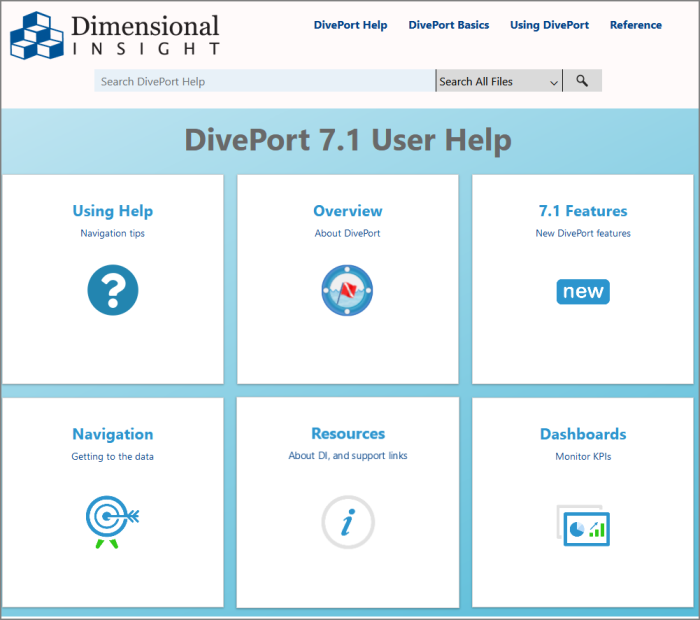
In the menu bar, click HELP and then View Administrator Help or View User Help to view the DivePort Help for the Administrator or User.
Here is the Welcome page for the
DivePort Administrator Help.Here is the Welcome page for the
DivePort User Help.DivePort Help opens in your default browser.