Verifying the HTTPS Connection
You can verify the HTTPS connection for Tomcat by opening a browser window and connecting through the TLS port URL. The first time you attempt to connect to your Tomcat web server through a self-signed certificate using HTTPS, you can expect warnings from the browser when it attempts to authenticate with Tomcat. You might encounter the following:
- A browser might display a warning message similar to "There is a problem with this website's security certificate".
- The Microsoft Internet Explorer browser asks you to click the Continue to this website (not recommended) warning message before opening the Tomcat home page on the secure port.
- Most browsers allow you to accept the self-signed certificate permanently.
- If you restart the browser and enter https://<servername>:<portnumber>, the default Tomcat home page should display without a security warning.
NOTE: If you encounter any HTTPS errors when logging into Tomcat, refer to your logs for troubleshooting information.
This procedure uses the Mozilla Firefox browser.
To verify the HTTPS connection, complete the following steps:
-
Open a browser window, and enter a URL with the following syntax:
https://<servername or IP address>:8443
For example:
https://localhost:8443 -
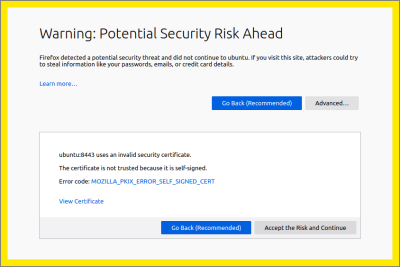
Press Enter to display
 the following security screen in the Firefox browser:
 -
Click Advanced to
view additional information. -
Click Accept the Risk and Continue to enable the connection to the Tomcat web server.
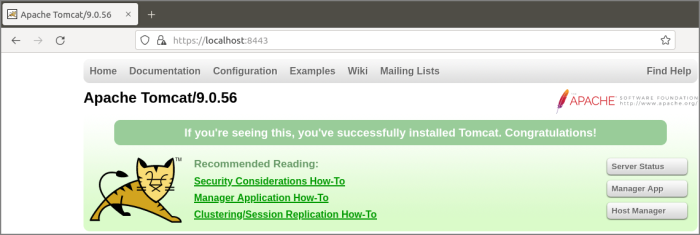
The
confirmation page displays.NOTE: The confirmation page might differ depending on the version of Tomcat.