Configuring IIS Windows 8 / Server 2012
Microsoft’s Internet Information Services (IIS), or Internet Information Server, is a Web Server for use with Windows NT. IIS is not active by default when Windows is installed; the IIS Manager is accessed through the Microsoft Management Console or the Administrative Tools in the Control Panel. This section applies to IIS 8.0 which comes standard in Windows 8 and Server 2012. These steps might not be exact–refer to the latest Microsoft documentation.
To verify the IIS installation:
-
Navigate to Control Panel\Programs\Programs and Features.
NOTE: There are multiple ways to navigate the Windows operating system. This method uses a path in the Windows Explorer.
The Programs and Features window opens.
- On the left column, click Turn Windows Features on or off.
-
Expand Internet Information Services.
-
Select your options. The ones listed below are required.
- Web Management Tools > IIS Management Console
- World Wide Web Services > Application Development Features > CGI
- World Wide Web Services > Security > Windows Authentication
-
Click OK.
-
The dialog box closes.
NOTE: You might need to restart your computer for these features to take effect.
To create a virtual directory and set permissions to allow DLCGI to run:
-
Navigate to Control Panel\System and Security\Administrative Tools.
NOTE: There are multiple ways to navigate the Windows operating system. This method uses a path in the Windows Explorer.
-
Click Internet Information Services (IIS).
The Internet Information Services (IIS) Manager opens.
-
On the Connections pane on the left, expand the local computer and Sites.
The Default Web Site displays.
-
Right-click Default Web Site and select Add Virtual Directory from the menu.
The Add Virtual Directory dialog box opens.
- For the Alias, enter cgi-bin and for the Physical Path, browse for the path to the dlcgi.exe file. The default path is C:\DI\Solution\diveline\cgi-bin.
-
Click Connect as.
The Connect As dialog box opens.
- Select Specific User and Set, fill in the credentials for the user account running DiveLine, and click OK.
-
Do one of the following:
-
If DiveLine and the Web Server are on the same machine, copy the \diveline\install-files\dlcgi-local.cfg file to the diveline\cgi-bin directory.

-
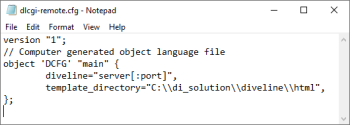
If DiveLine and the Web Server are on different machines, copy the \diveline\install-files\dlcgi-remote.cfg file to the diveline\cgi-bin directory.
-
-
Rename the copied cfg file to dlcgi.cfg and open the file verify the dl-dataroot directory path, or the server and port number.
NOTE: Repeat Step 1 to 8 for each virtual directory.
- To set permissions, select the virtual directory.
-
On the center pane, double-click Authentication.
The Authentication options open.
- Disable all authentication methods except Windows Authentication. Enable Windows Authentication if it is disabled.
-
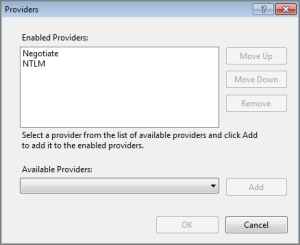
Right-click Windows Authentication, and select Providers from the menu.
The Providers dialog box opens.
-
Remove Negotiate from the Enabled Providers and click OK.
-
Select the virtual directory again, double-click Handler Mappings, and double click CGI-exe.
The Edit Module Mapping dialog box opens.
- Click the browse button for the Executable box, and browse to the location of the dlcgi.exe file. The default value is C:\DI\Solution\diveline\cgi-bin\dlcgi.exe. If you cannot see the executable, select exe from the file type pull-down menu.
-
Click OK.
The dialog box closes.
-
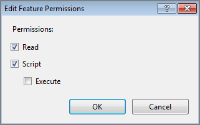
Right-click CGI-exe, and select Edit Feature Permissions from the menu.
The Edit Feature Permissions dialog box opens.
-
Select the Read, Script, and Execute check boxes, and click OK. This enables CGI-exe.
-
Test this configuration by running dlcgi.exe?raw:
Open a web browser and enter in http://<servername>/cgi-bin/dlcgi.exe?raw.
NOTE: This page might ask for a username and password. Use the server username. For this example, the username is jsmith.
Here is the resulting page:
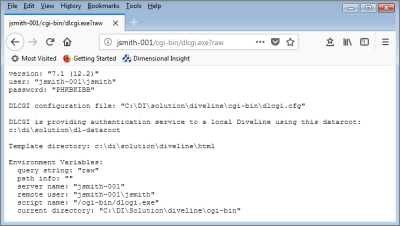
IIS is now configured for DiveLine’s Web Server authentication under Windows 8.