Configuration Options
After you install Bridge, you launch it as you would a DivePort instance.
Enter the URL into your web browser. For example, https://jsmith-001/bridge-test/#.
A page similar to the following displays.
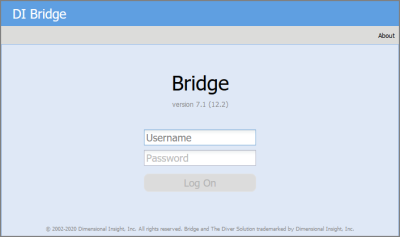
Use an Administrator account from the DiveLine that Bridge uses to log on.
Adding Login Options
Using Workbench, you can display messages and information to a user after login to various DI clients:
- Welcome Message—This message appears when the user opens Bridge.
- Message of the Day—This message appears after a successful log in.
- Last Login Information—Displays information about the user's last log in. If this option is selected, it appears as part of the Message of the Day.
To add a log in Welcome Message or a Message of the Day or both:
- Open Workbench.
- Navigate to the Connection Manager.
-
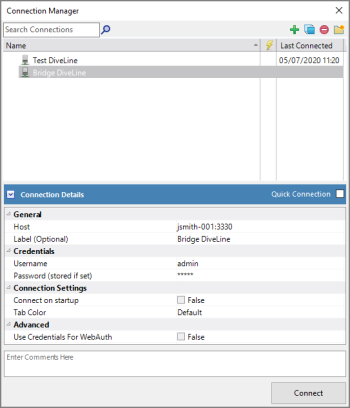
Open a connection to the DiveLine hosting the Bridge. For example:
-
Click Tools > Server Settings > General > Options.
-
Click the Login Options chevron to display the login settings.
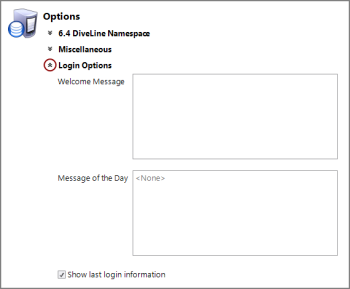
- Optionally, enter a Welcome Message, or Message of the Day, or both, and select or clear the Show last login information check box.
- Save your changes.
When Bridge is accessed by your users, they see any configured messages.