Creating a Help Desk Shortcut with Login Options
For some of your
To create an automatic connection to
-
Navigate to the
C:\Program Files (x86)\Dimensional Insight\HelpDesk\HelpDesk.exe
- Right-click the executable file, and click Create shortcut.
- Rename the shortcut to a meaningful name.
-
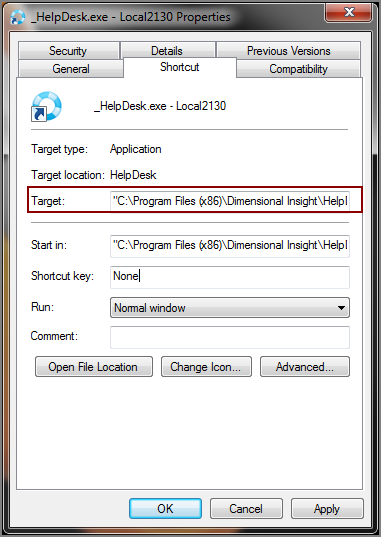
Right-click the shortcut, and click Properties.
The
 Help Desk.exe Properties dialog box opens with the Shortcut tab selected.
 -
In the Target box, append the executable path with the command-line switches listed in the following table.
- Move the shortcut to an appropriate location, such as on the desktop.
| Switch | Description |
|---|---|
| -s <servername> -s <servername>:<port number> |
Specifies the DiveLine server to log on to. You can combine the DiveLine server with the port by separating them with a colon. NOTE: If no port number is indicated here or with the -p switch, port 2130 is assumed. |
| -p <port number> |
Specifies the DiveLine server port to log on to. NOTE: This switch is not necessary if the port number is included with the DiveLine server name. If no port number is indicated, port 2130 is assumed. |
| -u <username> | Provides the user name to log on with. If not specified, the user is prompted. |
| -pw <password> | Provides the password to log on with. If not specified, the user is prompted. |
This example combines the DiveLine server name with the port number. The shortcut does not supply a user name or password, so the user is prompted for credentials.
"C:\Program Files (x86)\Dimensional Insight\HelpDesk\HelpDesk.exe" -s my.server.com:2130