Presentation pages are files that display as slides and are organized using tabs or bookmarks. Presentations can be easily navigated by
Here is an  example of a presentation page.
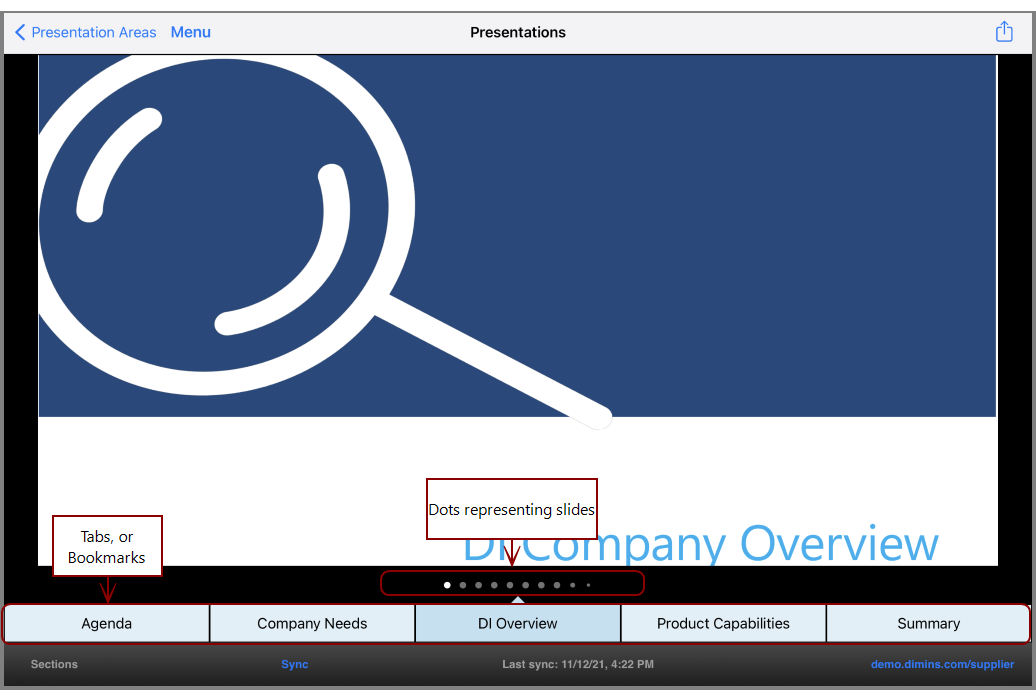
The tabs, or bookmarks, represent different sections in the presentation, while the dots in the bar above the tabs indicate the number of slides in the current section. The lighter shaded dot is the slide currently being viewed.
The header and footer are initially hidden when the presentation is opened. Tap the center of the screen to reveal them.
Here is how the presentation appears with header and footer hidden.

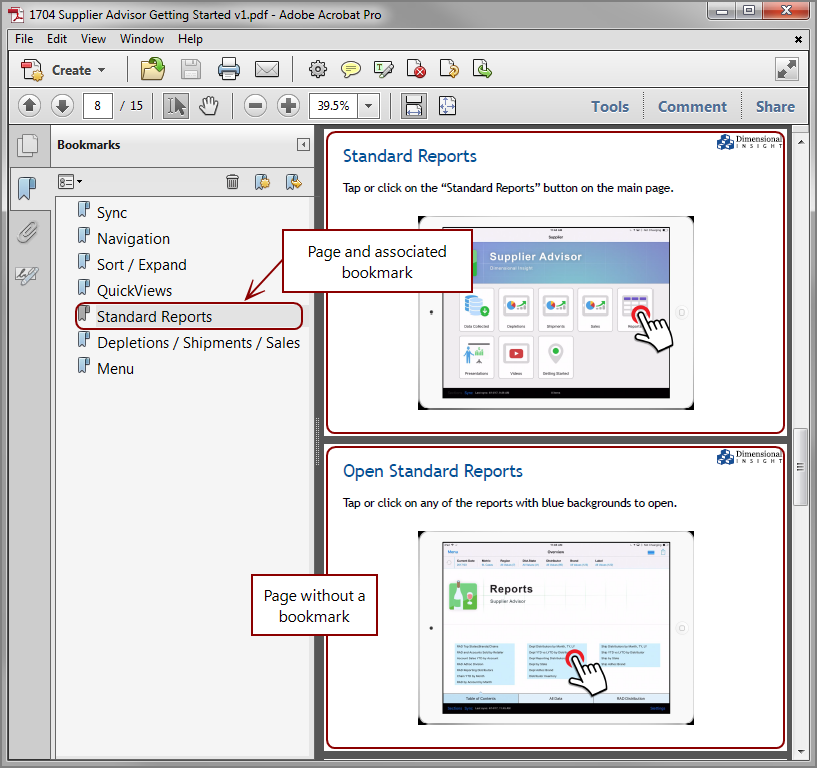
Presentation pages are pdf files, with the pdf bookmarks becoming tabs and the pages becoming slides.
Here is an example of a pdf file opened in Adobe Acrobat Pro.
Here is the same file as a presentation page in DiveTab.
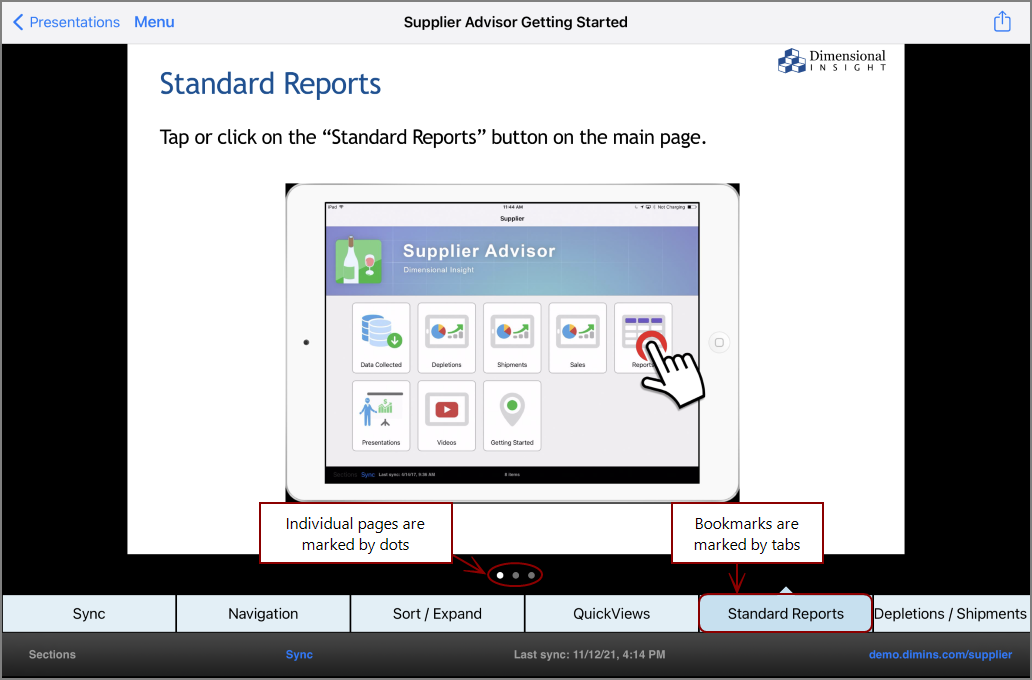
Notice how dots represent the pages, and the tabs represent the bookmarks.
TIP: When you navigate away from the presentation and return in the same session, DiveTab recalls the last slide you viewed.