Changing Dimensions on a Tabular Display
Optionally, your DivePort administrator can enable dimension changing on tabular portlets. When they do, they specify which dimensions you can change to.
TIP: If dimension changing is enabled, when you place the pointer on a dimension column heading, the pointer changes to a  pointing hand, and when you click the dimension column heading, a list of available dimensions open.

To change a dimension:
-
Browse to the page with the tabular display.
Dimension values display in the leftmost columns. Numeric data values display in the columns to the right of the dimension columns.
-
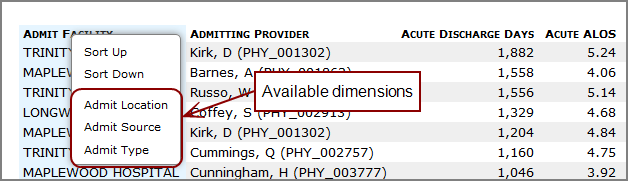
Click the heading of a dimension column.
A context menu with sort options and available dimensions opens.
-
Select the dimension that you want to change to.
The table refreshes with the new dimension in place of the previous one. In this example, the Admit Facility values have been replaced with the Admit Type values and the values in the remaining columns have been updated accordingly.
