DivePort administrators can make the files in your organization's document library available for download.
 Downloading a file when you can view the contents of the document library
This option is available only if an administrator has given you permission. If you can view the contents of the document library, but cannot download files, an administrator might have specified alternative functionality for you to use.
-
Browse to the content you want to download.
NOTE: If you cannot find the content you want to work with, contact your DivePort administrator.
-
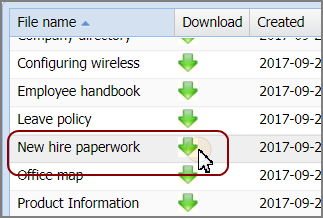
In the row for the file you want to download, click the
Download icon  .
.If the file is an image or a pdf, its contents display in a new browser tab.
For other types of files, such as Microsoft Word documents or PowerPoint presentations, the downloads area for your web browser appears.
-
Use your web browser's options to open or save the file.
 Downloading a file using administrator-specified functionality
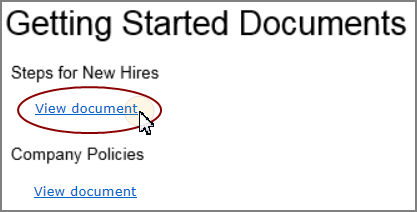
When using administrator-specified functionality, the files that you download display one of two ways. If the file is an image or a pdf, a preview of the file displays alongside the page content, and you can use your web browser's options to save it. For other types of files, a View document link displays, and you can click it to download the file.
-
Browse to the content you want to download.
NOTE: If you cannot find the content you want to work with, contact your DivePort administrator.
-
Do one of the following:
-
To download other types of files, such as Microsoft Word documents or PowerPoint presentations, click
View document.The downloads area for your web browser displays.
-
- Follow your web browser's prompts to open or save the file.