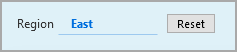
QuickViews
Typically, QuickViews are placed at the top of a DivePort page in the form of a pull-down list.
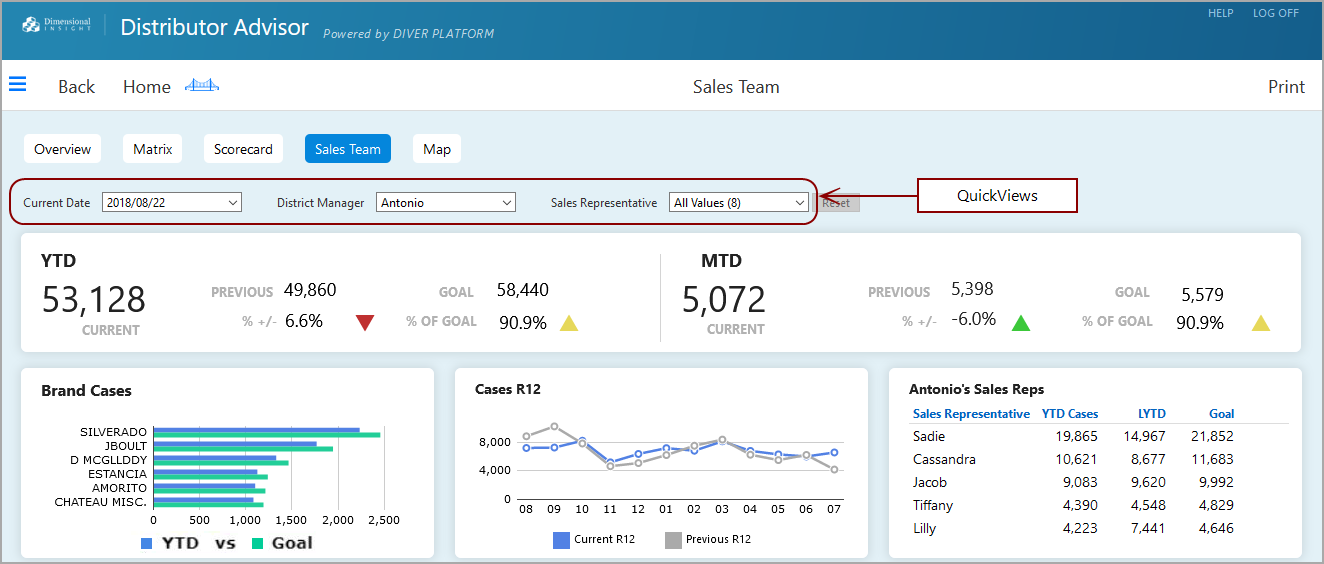
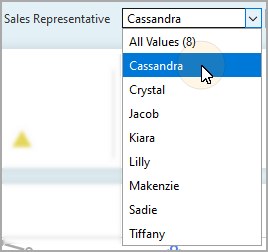
Click the list to expand it, and then select a value.
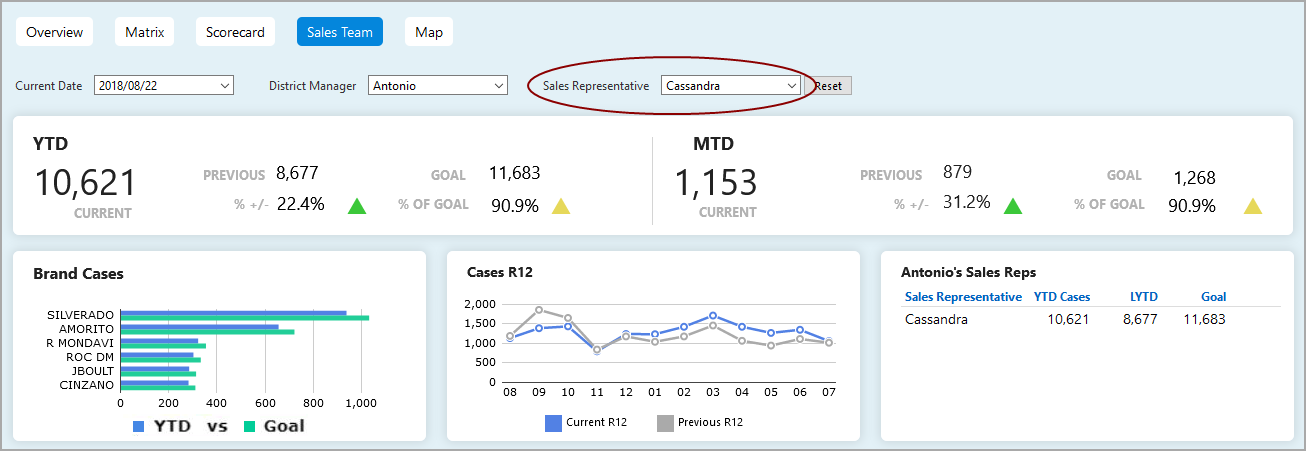
The DivePort page refreshes to display the specified data. In this case, only the data for Sales Representative Cassandra is included.
TIP: If multiselect is enabled, you can select more than one QuickView value at a time.
Selecting an option from a QuickView can update all of the data on a page, or only certain data. For example, a QuickView might update the data in only one table.
Optionally, there might be a Go button that allows you to change multiple QuickView values at once. Change the values as you like, and then click Go to refresh the page with the new values.

NOTE: If the QuickViews are set to activate when Go is pressed, changing a QuickView disables the Print option as well as any click actions until Go is pressed. This ensures that the printed output or click action shows up-to-date data.
DivePort pages can contain multiple QuickViews, either as part of other Portlets or within one or more QuickView Portlets. The QuickView Portlet can find and use QuickViews in ProDiver markers or in Spectre QuickView Sets. Creating QuickViews is described in both
Optionally, there might be a Reset button that returns all QuickViews to their default values.