Creating Shortcuts
You can create a shortcut to a portal page or to an external link.
Before you create a shortcut, view the existing shortcut list to ensure that the name that you want to use is not already taken. To display existing shortcuts on a DivePort page, press Ctrl+B (Windows) or Command-B (macOS).
To create a shortcut to the current page:
-
Do one of the following:
-
Click the Add a Shortcut for this page icon.

The shortcut is automatically added to your Shortcuts shelf.
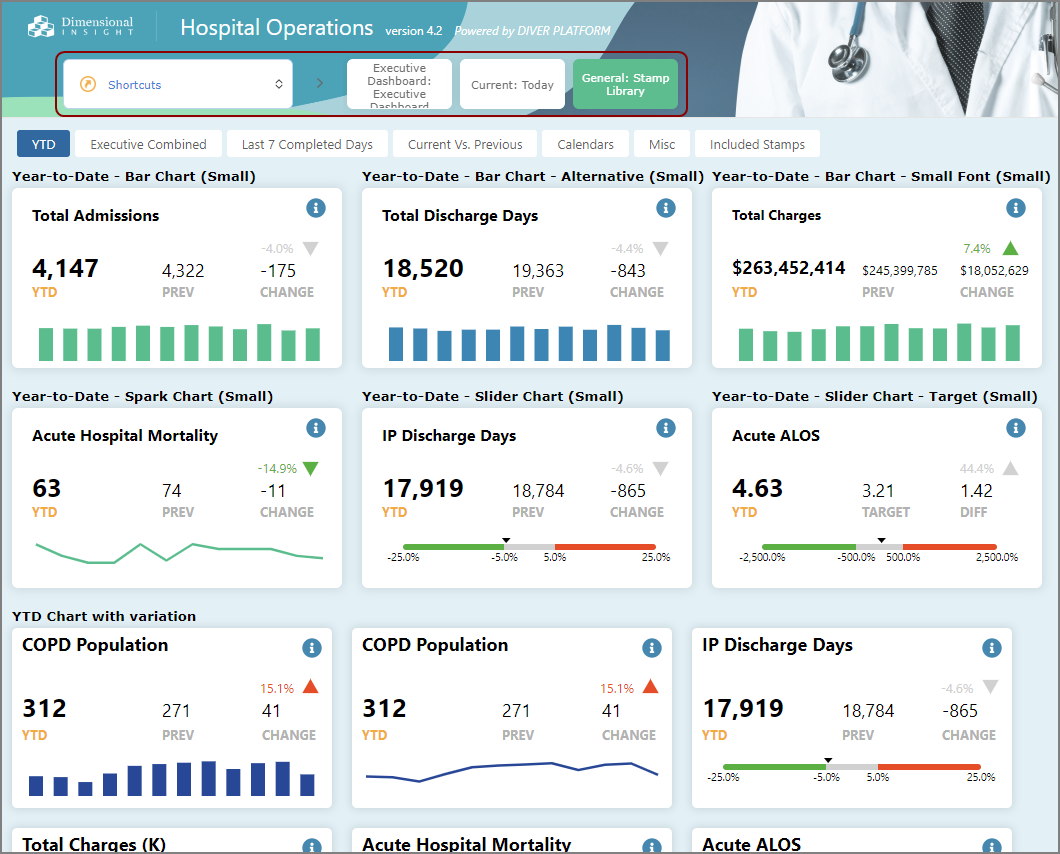
NOTE: This option automatically adds your new shortcut with no option for further customization.
-
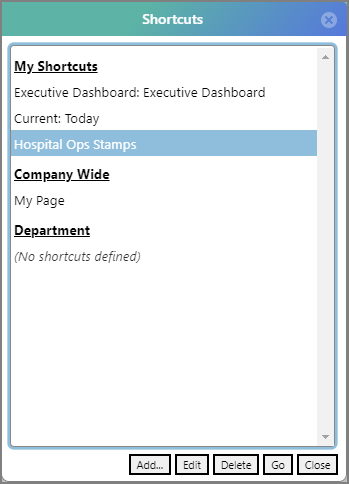
On the title bar, click MY ACCOUNT, select Shortcuts, and then on the Shortcuts dialog box, click Add.
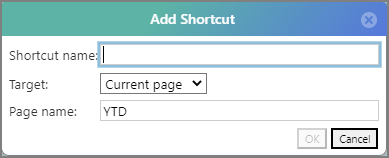
The Add Shortcut dialog box appears.
-
Press Ctrl+B (Windows) or Command-B (MacOS), and then on the Shortcuts dialog box, click Add.
The Add Shortcut dialog box appears.
-
-
If you are using the Add Shortcut dialog box, enter a unique Shortcut name.
-
In the Target box, select Current page.
-
Optionally, edit the Page name.
-
Select OK.
The shortcut is added to the My Shortcuts list.
To create a shortcut to an external link:
-
Do one of the following:
-
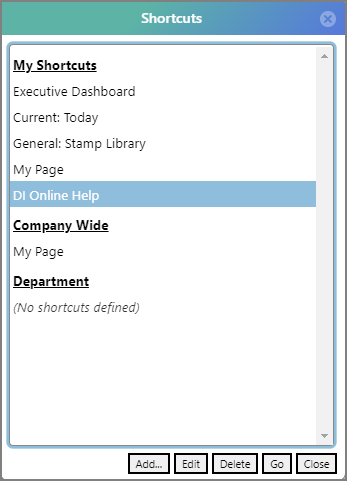
On the title bar, click MY ACCOUNT, select Shortcuts, and then on the Shortcuts dialog box, click Add.
-
Press Ctrl+B (Windows) or Command-B (MacOS), and then on the Shortcuts dialog box, click Add.
The Add shortcut dialog box appears.
-
-
Enter a unique Shortcut name.
-
In the Target box, select Other website.

-
Enter a Target URL.

-
Select OK.
The shortcut is added to the My Shortcuts list.
NOTE: Shortcuts are saved in the $USER/shortcuts.sdl file on the DiveLine server.