Adding Page Links to a Menu Portlet
Use the page ID to add portal page links (menu buttons) to a menu portlet.
 How to find the page ID
- Browse to the portal page.
- On the toolbar, click Edit to unlock the page and enable edit mode.
-
On the toolbar, click the chevron, and then select Settings.
The Page ID can be found on the Settings dialog box.
-
Browse to the page that contains the menu portlet.
-
On the toolbar, click Edit to unlock the page and enable edit mode.
-
Click the menu portlet instance.
A blue outline and a chevron appears on the selected portlet.
-
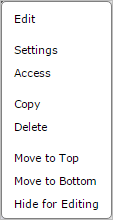
Click the portlet context menu chevron or right-click the portlet.
The menu portlet
context menu opens. -
Select Edit.
-
Click Add.
The Add Button
dialog box opens. -
Enter the portal page ID or URL of the first page that you want to add to the menu portlet.
-
Optionally, add a Label for the menu button. The default is to use the page name.
-
Optionally, enter the path to the image that you want to use on the menu button. The format is:
$(IMAGES_URI)/<folder-name>/<file-name>
The image library default location is DI\Solution\webdata\<diveport>\ customizations\images. The default image for menu buttons is:

- Click OK.
- Repeat steps 6–10 until you have finished adding pages.
- On the Edit Menu Portlet dialog box, click OK to save the changes.