Adding a Constant Value Column to a Measures Portlet
- Browse to the page that contains the portlet that you want to edit.
-
On the DivePort toolbar, click Edit to unlock the page and enable edit mode.
-
Right-click the measures portlet that you want to edit, and then on the context menu, click Edit.
The Edit Measures Portlet wizard opens.
-
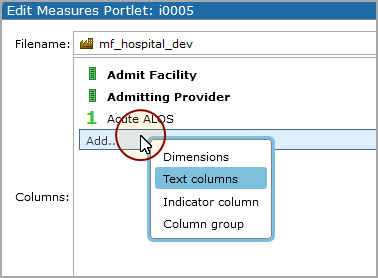
In the Columns
 box, click Add, and then in the context menu, click Text Columns.
The wizard advances to the Select values page.
-
Select Constant value, and then click Next.
The wizard advances to the next page.
-
In the Value
box, enter the value or macro that you want to display on every row.NOTE: The Title, Size, and Overflow options are not available for constant value columns.
-
If you want to color the value text, click the Edit this threshold
icon to the right of the Any value item in the Colors box, and use the color picker to select a color. -
Click OK.
Notice that the new column is added to the column list. The green A indicates that it is a constant value column, and the word blank indicates that there is no column title.
- Click OK.
- On the toolbar, click Save to save your changes and exit edit mode.

 Using constant values to label stacked columns.
You can use constant values to produce the effect of labeling stacked column values
The following example shows a measures portlet with two stacked columns. The third column in the portlet shows Cost and Cases as constant values in each row. The forth column shows specific values that uniquely apply to that row.
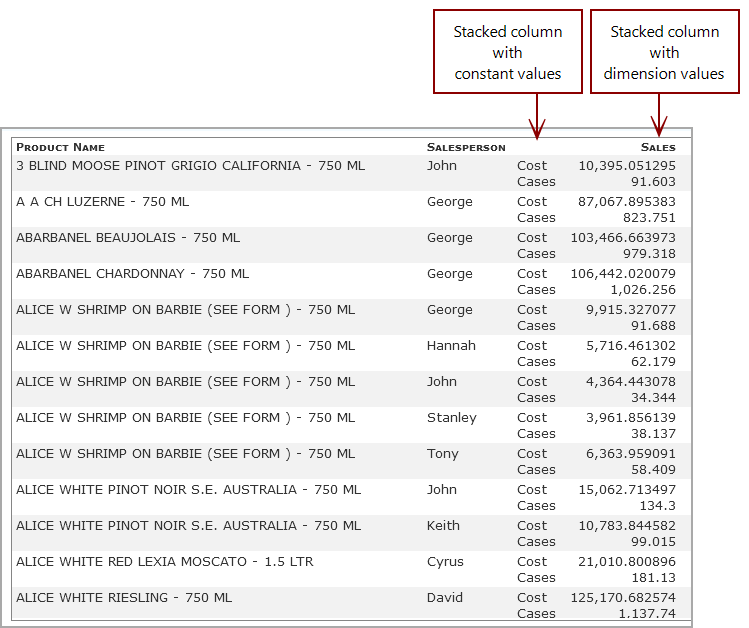
The portlet columns in the example are defined as follows:
