Configuring MCP with DivePort AI
An MCP server allows an LLM to use an external tool or knowledge base so it can better perform a given operation. DivePort AI supports both methods of utilizing MCP servers: DivePort AI can use tools and knowledge from an external MCP server, and it can provide information about the DivePort to another LLM through its own MCP server.
NOTE: Setting up an MCP server for use with DivePort AI requires access to the DiveLine file structure.
 Connecting an MCP Server to DivePort AI
You can connect an existing external MCP server to DivePort AI by adding it to the portaldb.json file.
NOTE: You must have the URL of the MCP server instance to configure it with DivePort AI. See the documentation for the particular MCP server you are using to get this information. Ensure that there are no spaces in any names or titles for the MCP server.
-
Navigate to the portaldb.json file for your DivePort implementation. For information about portaldb.json, see Portal Database.
-
In the portal section of portaldb.json, add an other block formatted like the following:
Copy"portal": {
"other": {
"ai.mcp-config": {
"servers": {
"<name>": {
"type": "http",
"url": "<url>"
}
}
}
}The values are
-
<name>—Whatever you would like to call the server. It will appear in DivePort the MCP settings dialog.
-
<url>—The URL of the MCP server.
-
-
Navigate to your DivePort portal.
-
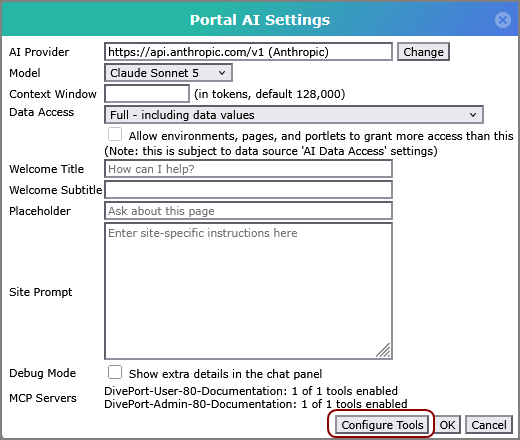
Navigate to Portal Settings > AI Settings.
The
Portal AI Settings window opens. -
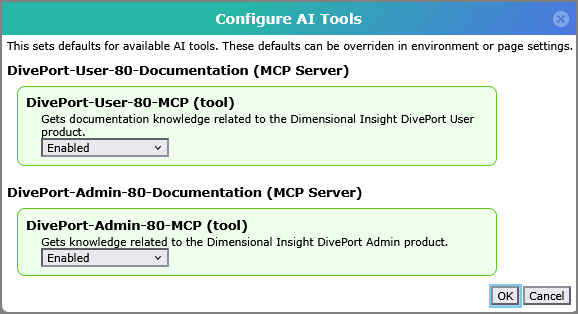
Click Configure Tools.
The
Configure AI Tools window opens. This window displays the MCP server you have configured in the portaldb.json file. -
In the dropdown menu for the MCP server, select Enabled.
-
Click OK.
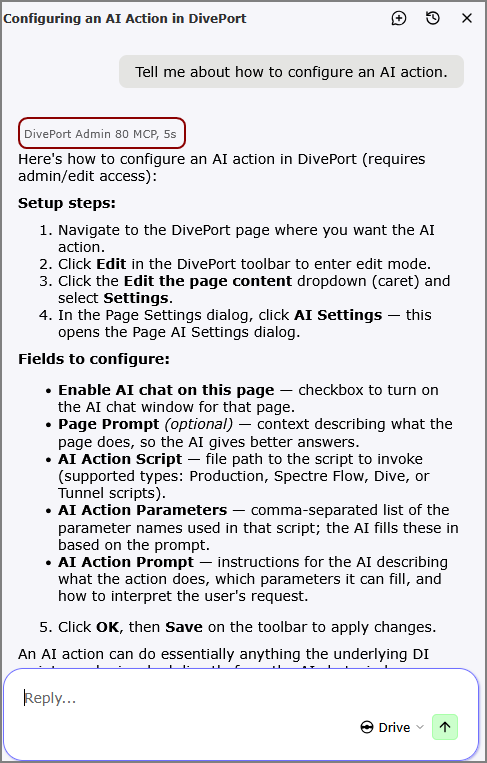
The MCP server is added as an available tool for the DivePort AI. When the DivePort AI uses an MCP server, it displays the name of the MCP server as part of its thinking process.