Using the Responsive Grid Layout
In DivePort 7.2(13) and later, you can use the Responsive Grid layout to add grids to respond to the size of your page.
You can add the Responsive Grid Layout to your page two different ways:
-
Upon creating a page
-
Changing the layout type in your Page Settings
 To add a page with the Responsive Grid layout:
-
Click the Sidebar
 .
.The Sidebar opens.
-
Click Add page.

The Add Page dialog box opens.

-
Next to Name, enter your page name.
-
Next to Layout, click the carrot and select Responsive Grid.

-
Click OK.
Your page is added.
-
Click Edit.
The grid displays in Edit mode.

-
Click the Edit the page content carrot and select Settings.

The Page Settings dialog box opens.
-
Optionally, to change the Number of Grids either:
-
Enter your desired number of grids.

-
Use the up and down arrows.

-
-
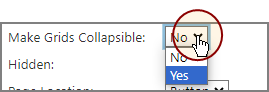
Optionally, to make your grids collapsible, next to Make Grids Collapsible click the carrot to select Yes.
-
Click OK to finish editing your page settings.
To add the Responsive Grid layout to an existing page:
-
On your page, click Edit.
-
Click Edit the page content carrot and select Settings.

The Page Settings dialog box opens.
-
Next to Layout, click the carrot.
A context menu with different layout options displays.
-
Click Responsive Grid.

The Page Settings dialog box updates with more options related to the Responsive Grid Layout.

-
Optionally, to change the Number of Grids either:
-
Enter your desired number of grids.
-
Use the up and down arrows.
-
-
Optionally, to make your grids collapsible, next to Make Grids Collapsible click the carrot and select Yes.
-
Click OK to finish editing your page settings.
Mentioned in: