Adding a Cross Value Column
In DivePort 7.2(12) and later, you can add cross value columns to your measures portlet. You can create these columns using text or indicators.
 Adding cross columns with text
On the page containing the measures portlet you want to edit:
-
On the DivePort toolbar, click Edit.
Edit mode is enabled.
-
Right-click the measures portlet that you want to edit and in the context menu, select Edit.
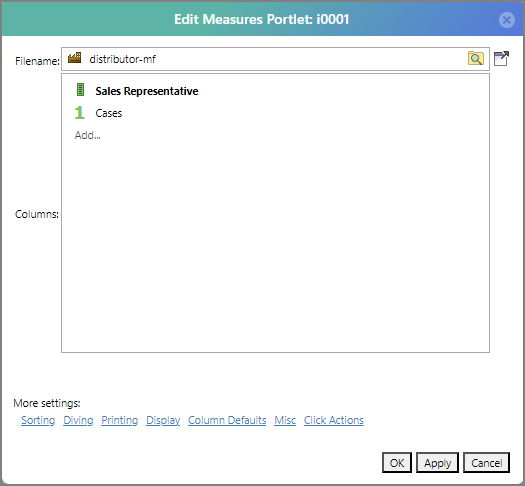
The Edit Measures Portlet
dialog box displays. -
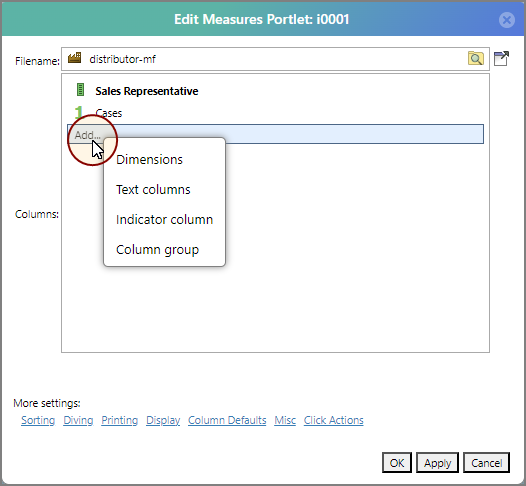
In the Columns box, click Add.
A
context menu displays. -
Click Text columns.
The Select values
page displays in the dialog box. -
Double-click a value in the list.
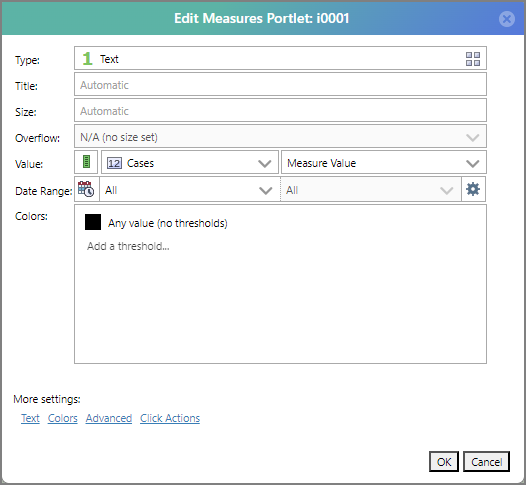
The Edit Measures Portlet
dialog box displays the column fields. -
Optionally, enter the Title, Size, and Overflow.
-
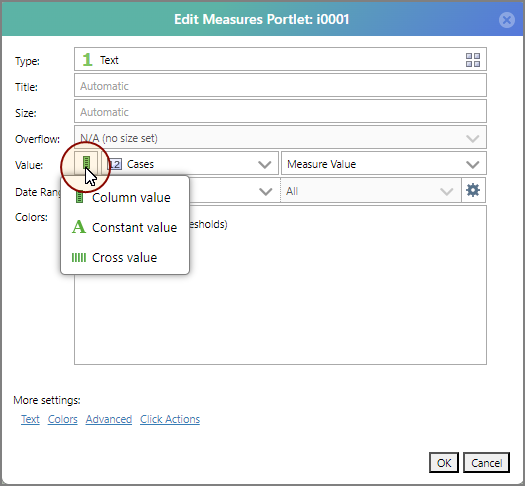
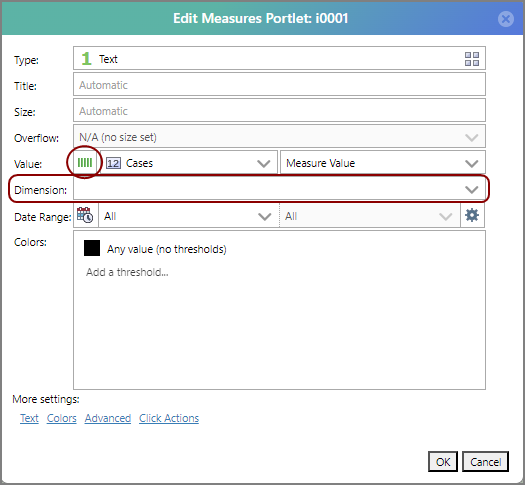
Next to Value, click the Column value icon.
A
context menu displays. -
In the context menu, click Cross value.
The Column value icon becomes a Cross value icon and a secondary Dimension field
displays. -
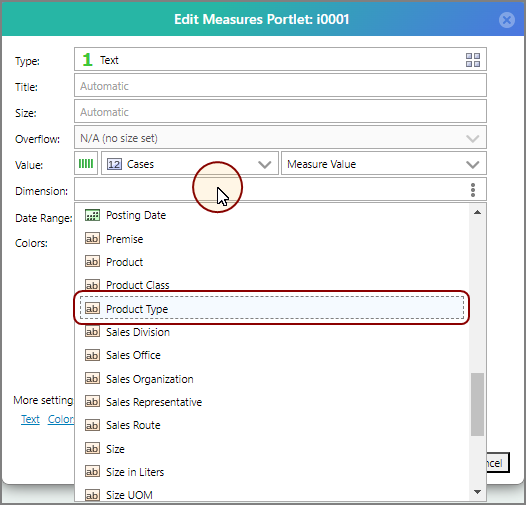
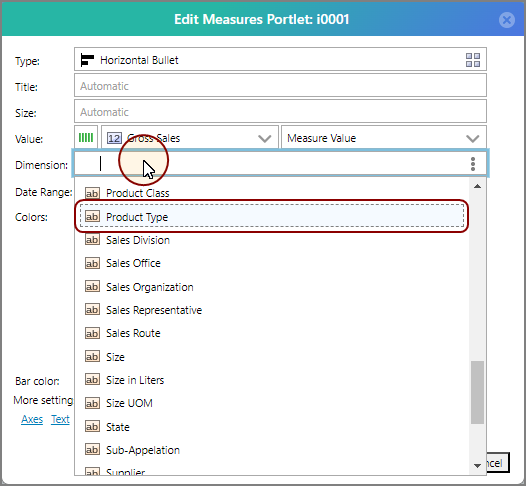
Next to Dimension, click the field and from the
context menu select your second dimension value.NOTE: If you leave this blank, the column is considered to be a typical column value type rather than a cross value column.
-
Optionally, enter a Date Range.
-
If you want to color the value text, click the Edit this threshold icon
 to the right of the Any value item in the Colors box, and use the color picker to select a color.
 -
Click OK.
The
cross column is added. -
Click OK.
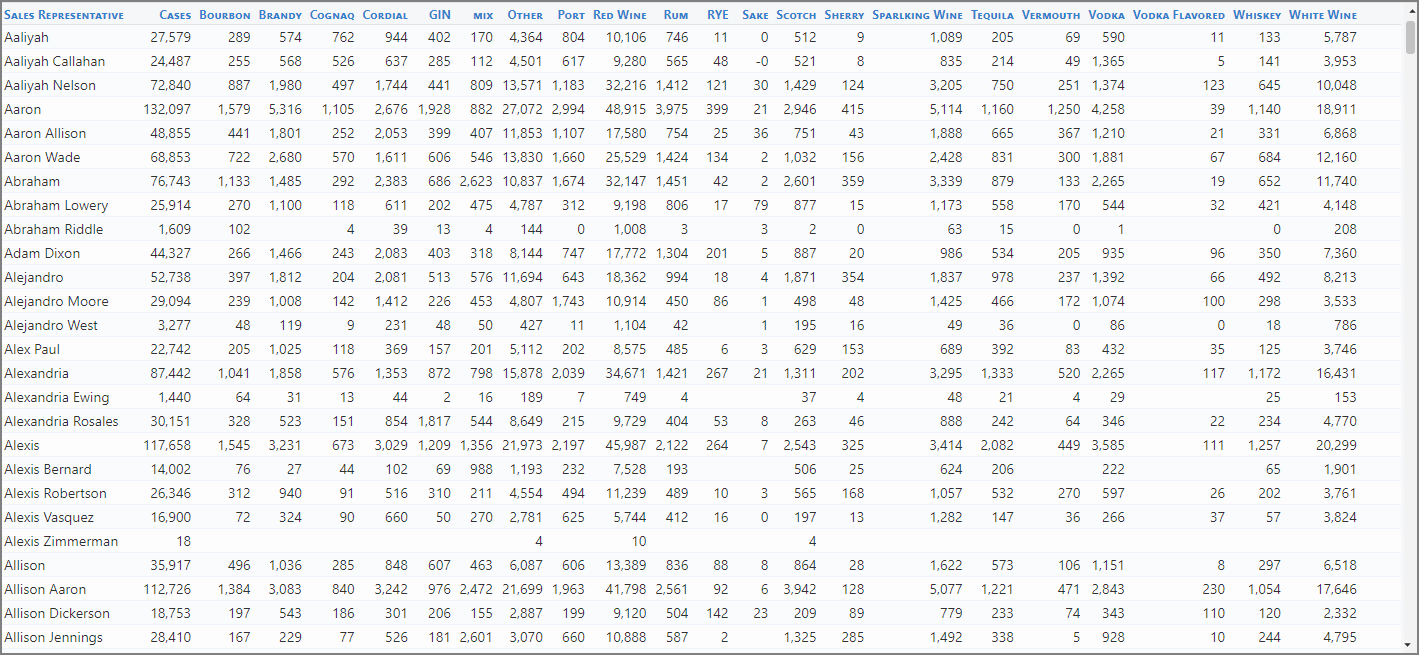
The Edit Measures Portlet dialog box closes, and the cross column displays in the
measures portlet. -
If you want to have multiple cross dimensions displayed, repeat these steps to create multiple cross value columns.
-
On the toolbar, click Save to save your changes and exit edit mode.


 Adding cross columns with indicators
On the page containing the measures portlet you want to edit:
-
On the DivePort toolbar, click Edit.
Edit mode is enabled.
-
Right-click the measures portlet that you want to edit and in the resulting context menu, select Edit.
The Edit Measures Portlet
dialog box displays. -
In the Columns box, click Add.
A
context menu displays. -
Click Indicator column.
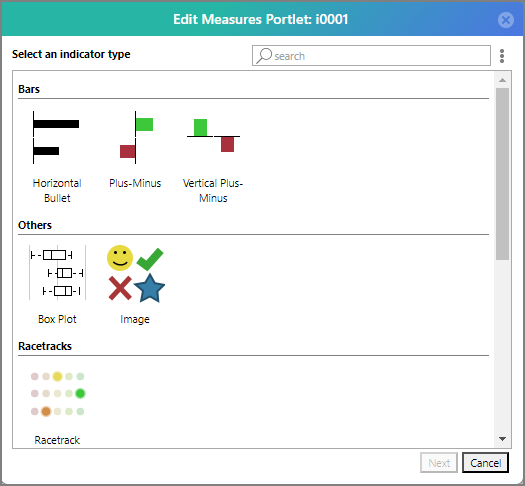
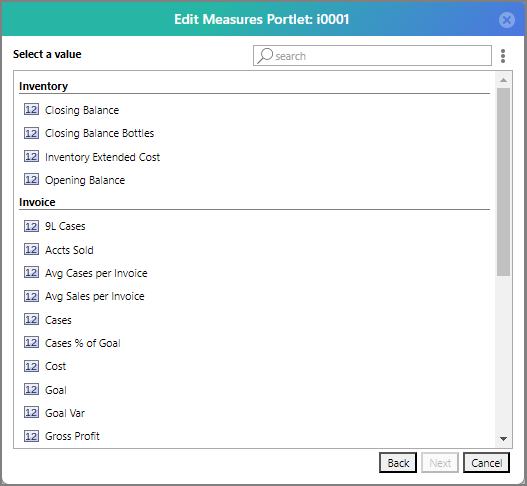
The Select an indicator type
page displays in the dialog box. -
Double-click your preferred indicator type.
The Select a value
page in the dialog box displays. -
Double-click a value from the list.
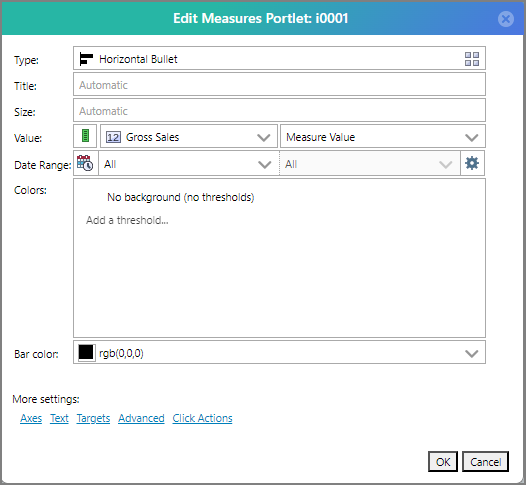
The Edit Measures Portlet
dialog box displays the column fields. -
Optionally, enter the Title, Size, and Overflow.
-
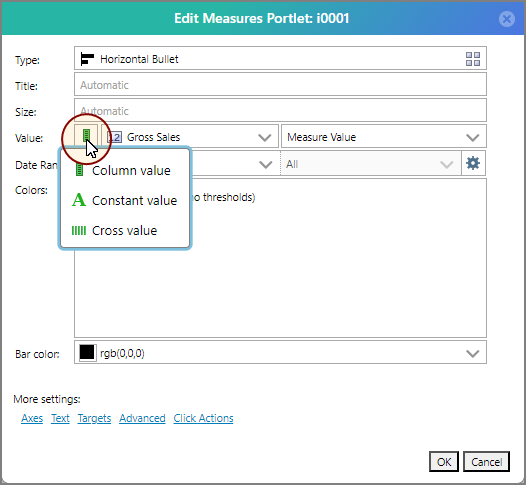
Next to Value, click the Column value icon.
A
context menu displays. -
In the context menu, click Cross value.
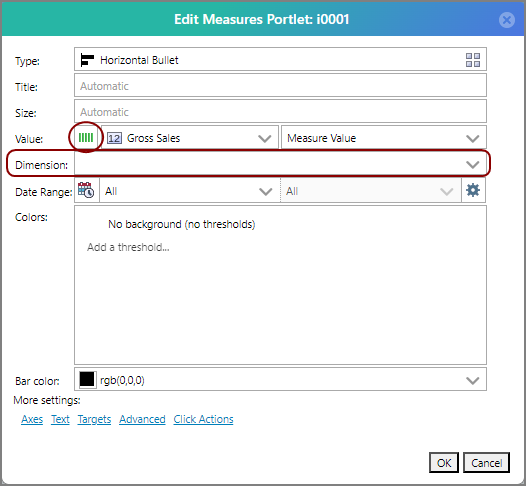
The Column value icon becomes a Cross value icon and a secondary Dimension field
displays. -
Next to Dimension, click the
field and from the context menu select your second dimension value.NOTE: If you leave this blank, the column is considered to be a typical column value type rather than a cross value column.
-
Optionally, enter a Date Range. See here for more information on date ranges.
-
If you want to color the value text, click the Edit this threshold icon
to the right of the Any value item in the Colors box, and use the color picker to select a color. -
Optionally, add any other colors based on your selected Indicator. In this example, the Bar color.
-
Click OK.
The
cross column is added. -
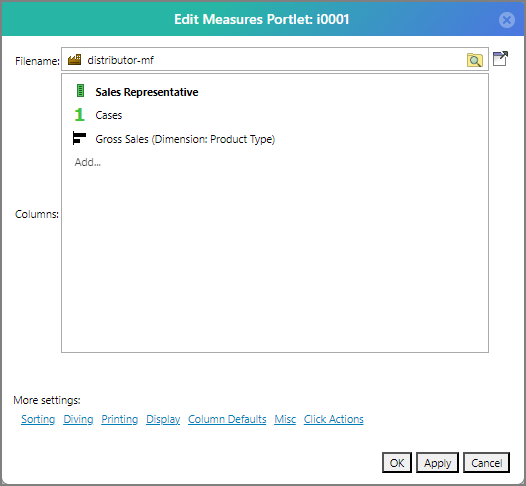
Click OK.
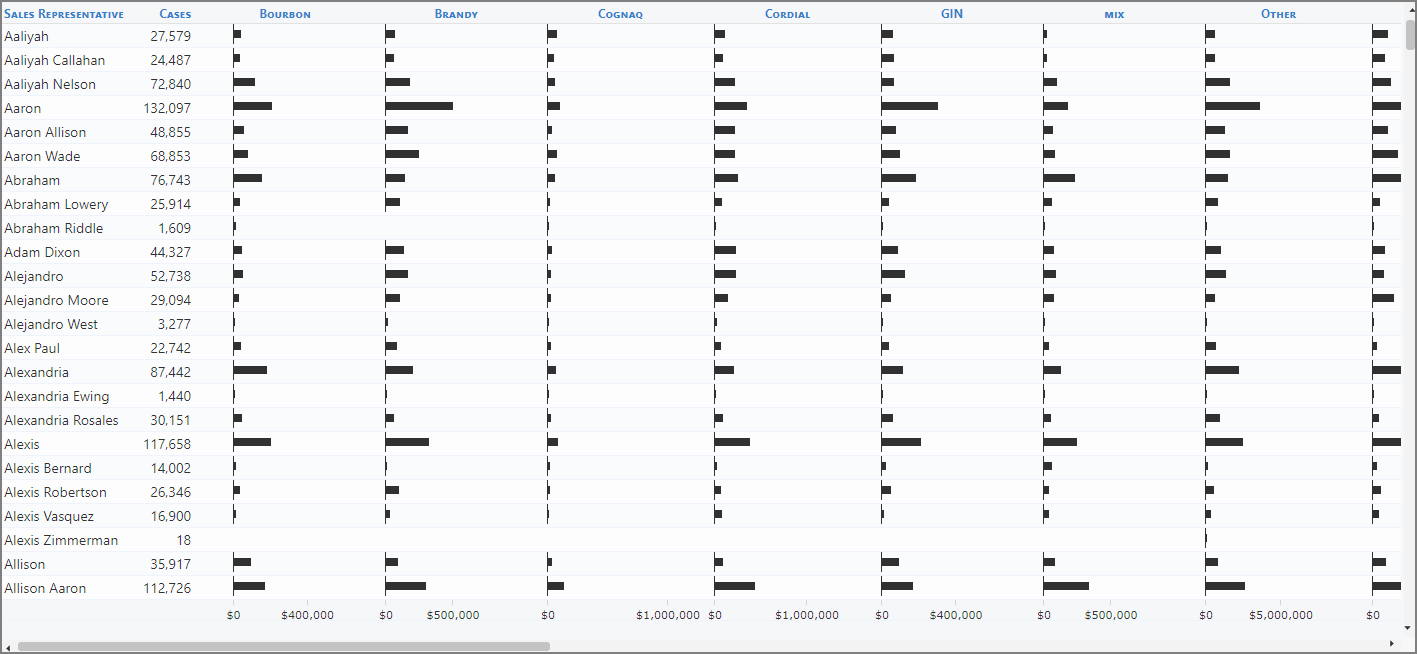
The Edit Measures Portlet dialog box closes, and the cross column displays in the
measures portlet. -
If you want to have multiple cross dimensions displayed, repeat these steps to create multiple cross value columns.
NOTES:
-
Each column can only have one cross dimension. Repeat these steps in order to have multiple cross dimensions displayed in your measures portlet.
-
Cross value columns are not allowed in a column group. If you try to add a cross column to a column group or edit a column within an already present group to become a cross column, the operation reverts and an alert displays.