Creating a Mobile-Based Environment
You can create a DivePort environment with pages that are optimized for smartphones.
NOTE: This environment type is not intended to be used with tablet PCs.
To create a mobile-based environment:
-
On the DivePort title bar, select ADMIN > Environment.
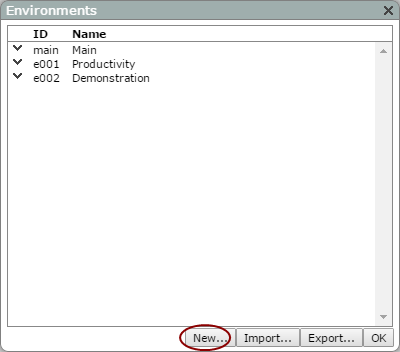
The Environments
 dialog box opens.
 -
Click New.
The Add Environment dialog box opens.
-
Enter a Name for the new environment, and then click OK.
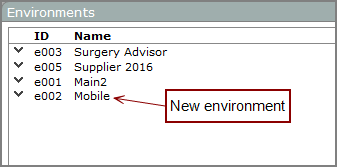
The new environment is added to the Environments
dialog box. -
Click the chevron to the left of the new environment, and then select Settings.
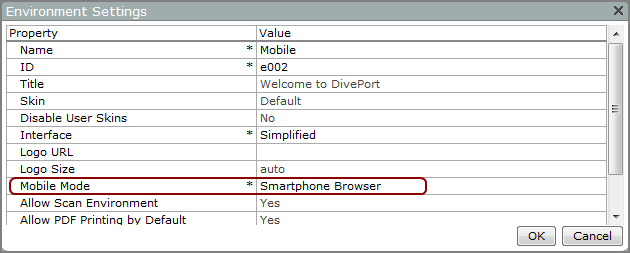
The Environment Settings dialog box opens.
-
Click the Mobile Mode
property row, and select the Smartphone Browser value. -
If you want the mobile DivePort environment to open a specified child page directly, next to Suppress Smartphone Browser Menu, select Yes.
NOTE: - Change other settings as needed, and then click OK to close the Environment Settings dialog box.
- Click OK to close the Environments dialog box.
-
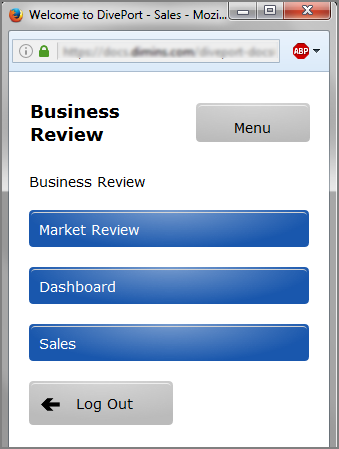
Create your top level pages for mobile viewing. These are the tiles in the mobile view.
TIP: Each page starts out blank. Instead of adding content, leave the top-level pages empty and use them as organizing categories.
-
Create child pages under each blank parent page and add content to the child pages. The names of the child pages appear as tiles in the mobile view.
NOTE: After you add content to the child pages, a Preview
icon appears in the toolbar. Click the icon to see a preview of the mobile screen.