Upload Document Click Action Options
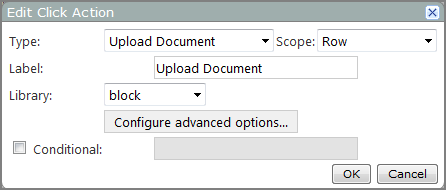
| Option |
Description |
|---|---|
| Type | Specifies the type of click action. |
| Scope | Specifies the click action scope. Options include Portlet, Row, Portlet and Row, and Link. Available options depend on the type of portlet. |
| Label | Specifies the label that appears in the click action context menu. The default is Upload Document. |
| Library | Specifies the document library to which you want to upload the document. Select a library from the list of all document libraries associated with your portal. |
|
Configure advanced options
|
Opens the Advanced Options NOTE: This option is available only if you have permission to access the underlying table or library.
|
|
Conditional
|
Specifies that the click action is available only if the value in the column specified in the adjoining box is a non-zero number or non-empty string. For example, if the option is set as follows:
This option is cleared by default. For more information, see About Conditionalized Click Actions. |
 dialog box

Advanced Options
| Option | Description |
|---|---|
| Dialog title | Specifies a title for the input form. |
| Use form | Specifies the form to use. Select a defined input form from the list. |
| Edit forms | Opens the Edit Forms dialog box, which you can use to select a form to edit or create a new form. |
| Prepopulate form with these values | Specifies text that appears in form text boxes when the page holding the form is open. The table contains one or more Property/Value rows for each text box on the form. |
| Skip form dialog and submit in the background | When selected, users are not presented with the form—the click action is performed in the background and the page is refreshed. |
| Let user choose library save location |
|
See also:
- About Upload Document Click Actions
- Creating a Form Portlet
- Adding, Editing, or Removing a Click Action