QuickView settings can specify that

The Diver Platform offers the following display types or styles of QuickView:
-
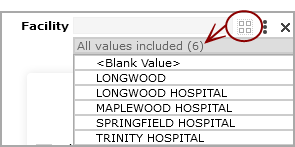
Flex—By default, a flex QuickView appears as a closed list with an expansion arrow next to it.
 Click the arrow to open the list. To select values, click the space to the left of the value name. A check mark appears to indicate that the value is selected. If enabled, you can select all values by clicking the Select All Values icon
  .
. .
.NOTE: If only one value is selected in a marker-backed QuickView that does not allow All Values, you cannot clear the selected value.
Clicking the Selection Options icon
 , opens a menu that you can use to take action on items in the QuickView list. Available options depend on the QuickView portlet settings.
Settings can also specify that the QuickView list is expanded by default, similar to a picklist.
NOTE: If the QuickView is defined in a marker and was originally created as a combo box, pull-down, or picklist,
- Hidden—A QuickView list that does not display. Used for QuickViews that are required for dependency, but you do not want users to change their values.
-
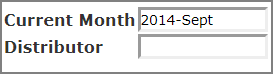
Free Entry—A text box that contains a default value. You can enter a new value directly in the QuickView text box.
-
Calendar—A text box that allows you to work with date values. You can enter a date directly into the box or click the calendar icon to select a date.

TIP: If you have a measure factory license, you can define calendars in the factory configuration file. If you declare multiple calendar types, the calendar QuickView uses first one listed in the script as the default. If you want a different calendar to be the default, you can use the default-calendar tag to specify the calendar that you want to use.
Selecting an option from a QuickView can update all of the data on a page, or only certain data. For example, a QuickView might update the data in only one table.
Optionally, there might be a Go button that allows you to update multiple QuickViews at once. Change the values as you like, and then click Go to refresh the page with the new values.

NOTE: If the QuickViews are set to activate when Go is pressed, changing a QuickView disables the Print option as well as any click actions until Go is pressed. This ensures that the printed output or click action shows up-to-date data.
DivePort pages can contain multiple QuickViews, either as part of other Portlets or within one or more QuickView Portlets. The QuickView Portlet can find and use QuickViews in ProDiver markers or in Spectre QuickView Sets. Creating QuickViews is described in
Time Range QuickViews
If you have a Measure Factory license and the factory configuration file includes a time range, you can create a  Time Range

Possible Time Range QuickView options are:
- Today
- Week-to-Date
- Month-to-Date
- Quarter-to-Date
- Year-to-Date
- <n> Days
- <n> Months
- <n> Quarters
- <n> Years
NOTE: The factory configuration file can also specify labels for the time ranges. For example YTD for the year-to-date time range. When set, the DivePort page displays the specified label.
User-Defined Time Range

See also:
- Adding a QuickView Portlet
- QuickView Portlet Options
- About QuickView Dependencies
- What Is a Portlet?
- What Is a Marker?