Printing a Page
You can print DivePort pages in pdf format. Open the pdf file in a browser window, and then print or save the file. If enabled, you can print to a png image file, or a ppt presentation.
NOTE: By default, printing to (png) image and ppt are disabled.
-
Browse to the page that you want to print.
-
On the toolbar, click
 Print, and select a print format.
The current page is converted to the selected format, and the content opens in a new browser window.
NOTE: If your web browser is blocking pop-ups, a
dialog box opens, displaying a link to the content. Press Ctrl while clicking the link to open the content in a new browser tab. -
Do one of the following:
-
If you selected Print to PDF or Print to image, use your web browser's
print options to print the content.TIP: In order for text to appear as expected in the pdf, any fonts used must be installed on the DivePort server.
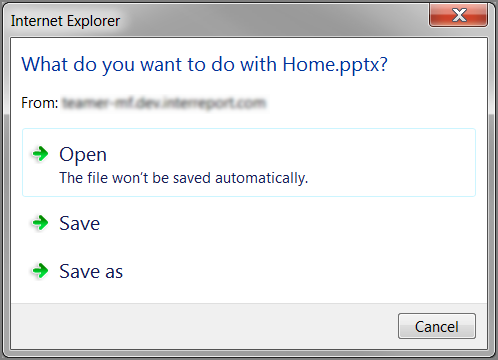
- If you selected Print to PPT, use your web browser's download options to open the content in Microsoft PowerPoint. Use the options in Microsoft PowerPoint to print the content.
-


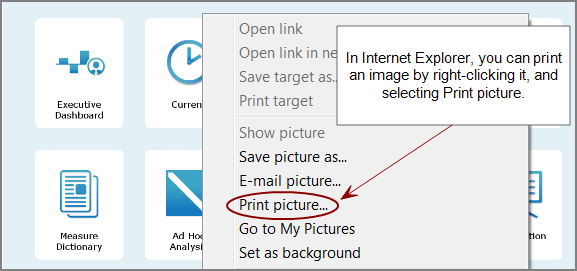
TIP: You can specify that DivePort prints a page with its child pages concatenated in a single pdf file by setting the Print setting Include child pages in PDF to Yes. Additionally, you can specify that DivePort prints a different page by setting the Print a different page Print setting to the UUID of the page that you want to print instead.
Print settings are available as a link on the Page Settings dialog box. For more information, see Page Settings.
Printing a multipage report
To print multipage reports, DI recommends that you add a PDF click action to the report portlet. This preserves the report formatting and fonts, and ensures that all data and pages in the portlet instance are printed.
NOTE: If you attempt to print a page and receive an error: Print page to PDF has not been property configured. Please contact your portal administrator, verify that the wkhtmltopdf.exe file is present in the C:\DI\Solution\webapps\<diveport>\executables\webkit directory. The DivePort installer for Windows automatically installs this file and updates the Tomcat context file during upgrades. The file can also be found in the DivePort zipped package for Linux installations. See Diver Platform 7.x Installation Guide for Linux, available at DI Product Documentation.
See also About PDF Click Actions.