- Use the Environment selector list to select an environment (available only when the portal has more than one environment).
- Use the horizontal tabs that are located under the title bar to select a top level page for the selected environment.
-
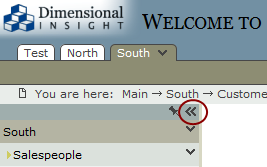
Use the SideBar to select a child page from the list. The SideBar can be displayed or hidden by clicking an
 icon located at the top right side of the SideBar.
 -
To open the SideBar, click >>.
-
To close the SideBar, click <<.
-
To keep it open for the session, click the pushpin.
-
- Use the location bar to view the current location in the portal or click an item to return to a page or environment in the string.
- Click the Bookmark icon
 located on the left side of the location bar to open the Bookmark menu, where you can select any bookmarks defined in the portal.

In addition, there can be:
- Various click actions defined in portlet instances
-
A
site map portlet with a hierarchical linked view of the portal -
A table of contents
portlet with direct links to child pages


Commands and menus are located on the right side of the title bar and tool bar. Context menus are available by right-clicking unlocked pages or by clicking chevron icons  that appear in unlocked pages, in the SideBar, in pop-up list and edit dialogs, and above and below the right side of the toolbar. Collapse and expand the title bar by clicking the double chevron.
See also: