Installing Client Browser Certificates
DivePort is configured to use TLS protocol to establish a secure connection between the web browser and web server and to encrypt data. TLS requires that a site certificate is added to each DivePort user’s computer.
All popular browsers maintain a list of trusted CAs. If you purchase a certificate from a trusted CA, your browser likely accepts the certificate automatically.
However, if you are using a self-generated certificate, when a user accesses DivePort for the first time, the browser presents an error message indicating that the certificate is not from a trusted CA, and the user must verify its authenticity before proceeding. Most browsers allow one-time acceptance of the certificate. Otherwise, users must accept the certificate each time they access DivePort.
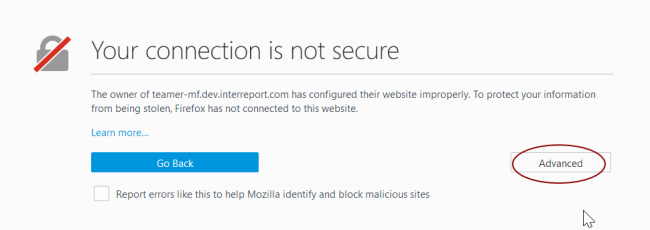
In the following example, Mozilla Firefox displays a warning because the site certificate is not on its list of Trusted Certificate Authorities. Although other browsers use slightly different wording, the procedure to accept the certificate is similar to the following:
NOTE: If you are using a self-generated certificate, this procedure must be performed on every user's computer.
-
Attempt to open DivePort for the first time, and see an error that questions the website security.
-
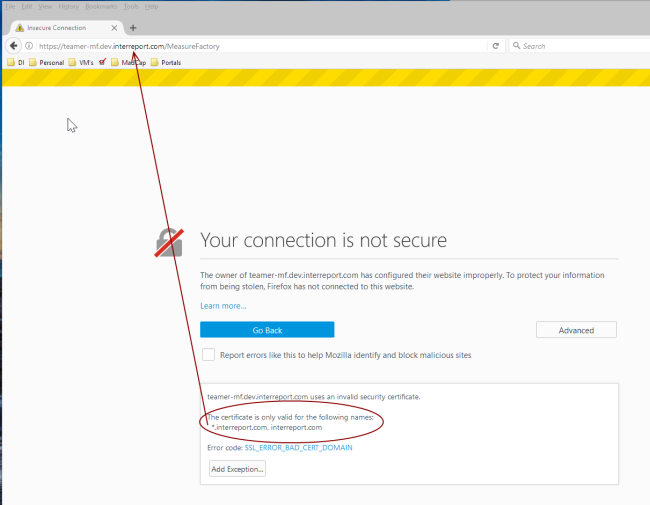
Click Advanced.
Information about the certificate appears.
-
Verify that the name on the certificate matches the exact name of the server.
IMPORTANT: If you use the IP address in the certificate, you must use the IP address in the URL and vice-versa. If you create the certificate with the machine name, the machine name must be part of the DivePort URL.
-
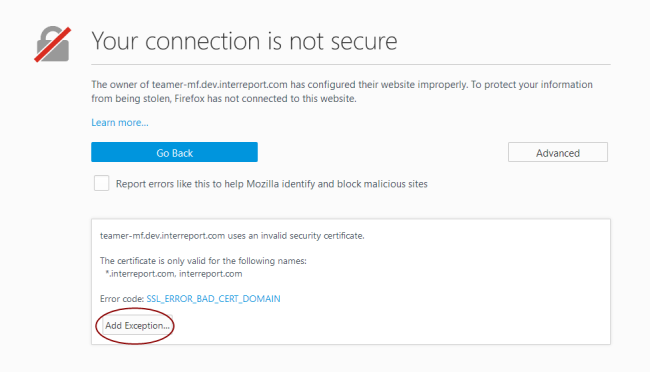
Click Add Exception.
A confirmation message window opens.
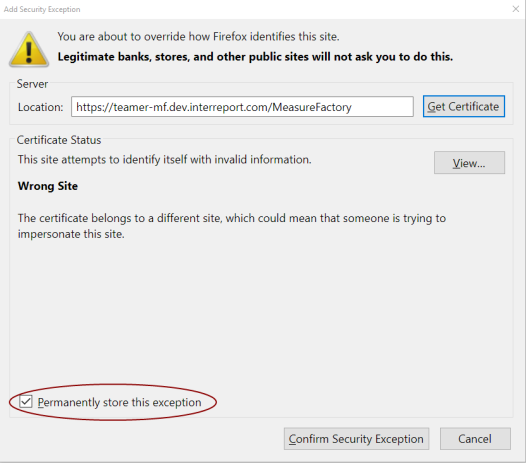
- Select Permanently store this exception, and then click Confirm Security Exception.